
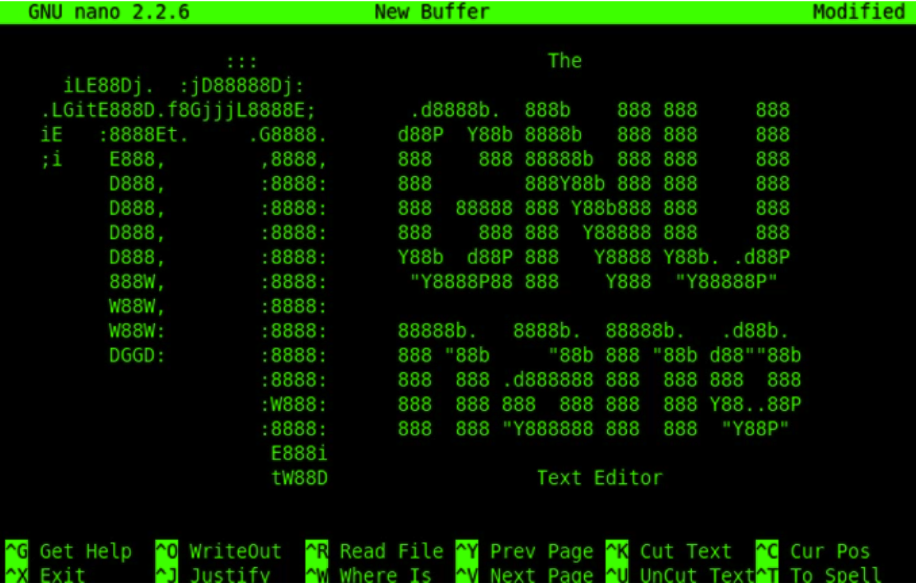
Nano is a very popular text editor in programming and in the Linux world in general. Unlike other text editors, such as Vim or Emacs, Nano is easier to learn and use because of its friendly user interface. In this article, we will discuss some tips and tricks for using Nano more efficiently and effectively.
Useful Keyboard Shortcuts
-
Ctrl + G: Displays Nano’s help with a list of all available keyboard shortcuts.
-
Ctrl + O: Saves the current file.
-
Ctrl + X: Exits Nano. If you have made changes, you will be asked to save them before exiting.
-
Ctrl + W: Searches for a text string within the file.
-
Ctrl + K: Cuts the current line.
-
Ctrl + U: Pastes text that was previously cut or deleted.
-
Alt + A: Activates or deactivates selection mode. In this mode, you can select text with the arrow keys and copy or cut it.
-
Ctrl + C: Displays the current cursor position in the file.
Tips for Improving Your Use of Nano
-
Configure Nano according to your preferences: Nano is highly customizable. You can change Nano’s default settings to adapt it to your needs. For example, you can change the indentation settings, the background color, or even add new keyboard shortcuts.
-
Use the autocomplete feature: To avoid typing errors and save time, Nano has an autocomplete feature that you can use. When you type a word, press Tab to see the possible autocomplete options.
-
Use the copy and paste feature: In Nano, you can copy text by selecting it with selection mode and pressing Ctrl + U to paste it. You can also use the Ctrl + K keyboard shortcut to cut an entire line.
-
Use the search feature: Nano has a very useful search feature that can help you quickly find a text string in your file. Press Ctrl + W to open the search feature.
-
Use multiple Nano windows: You can open several files in Nano at the same time. To do this, open Nano with the -o option and then open the files you want. For example, type “nano -o archivo1 archivo2” on the command line to open two files in two different windows.
Conclusion
Nano is a very useful and easy-to-use text editor, especially for beginners in programming and Linux users. With keyboard shortcuts, the proper use of relative and absolute paths, and the tips mentioned above, you can improve your use of Nano and work more efficiently and effectively. Whether you are editing a configuration file or writing code, Nano can be a powerful tool for increasing your productivity.