
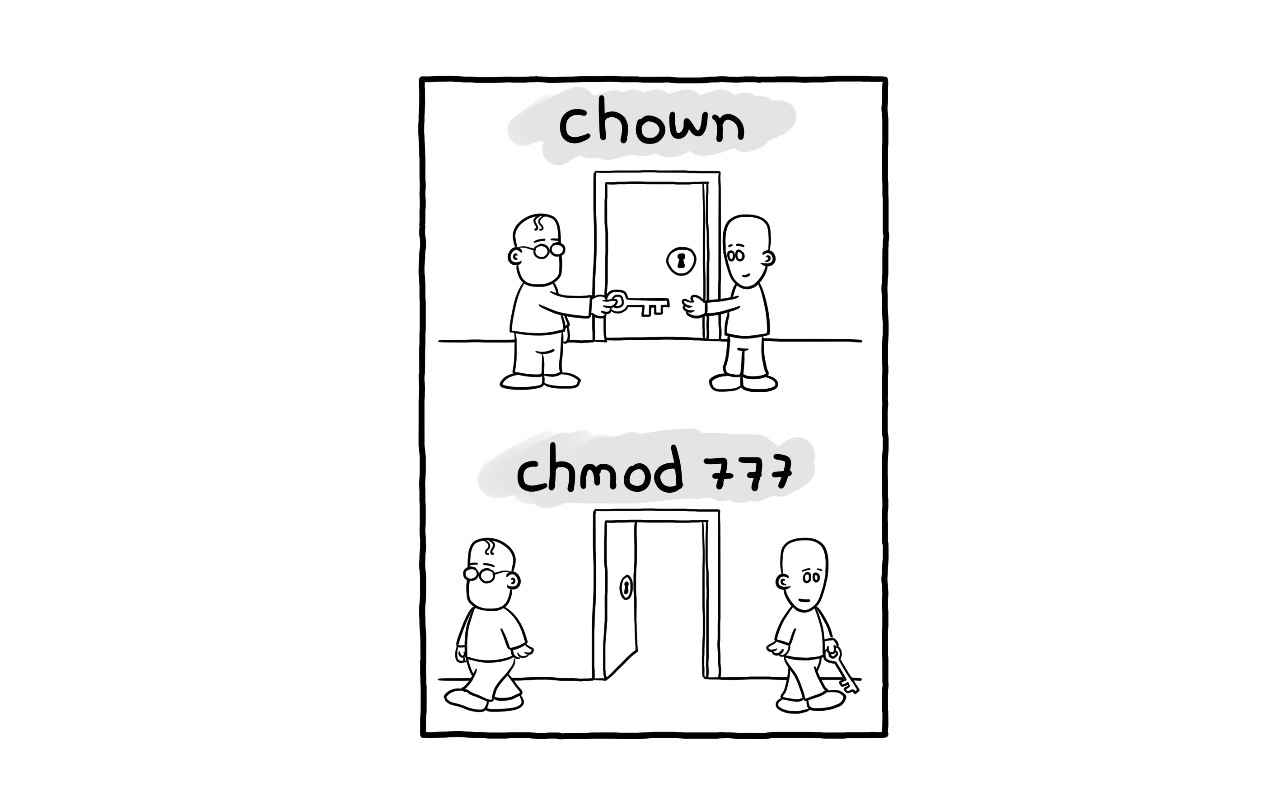
If you have ever wondered how to manage permissions better in Linux, you are in the right place. In this article, I will explain step by step how to set special permissions in Linux, especially setuid and setgid. These permissions are powerful tools that every sysadmin should know to ensure security and efficiency when managing files and directories. Let us dive into the topic.
What Are Special Permissions in Linux?
Before getting into how to set these permissions, it is crucial to understand what they are and why they matter. In Linux, standard permissions include read (r), write (w), and execute (x). However, special permissions provide additional behavior: setuid and setgid.
What Is setuid?
setuid (Set User ID) is a special permission used on executable files. When a file has setuid enabled, any user who runs that file does so with the privileges of the file owner rather than their own privileges. This is useful for tasks that require elevated permissions.
Example:
- Create an executable file:
echo -e '#!/bin/bash\necho "Ejecutado con permisos de: $(whoami)"' > programa.sh
chmod +x programa.sh
In this example, programa.sh is a simple script that displays the user running it.
Change the file owner to root (you need root privileges):
sudo chown root programa.shThis changes the file owner to root.
Apply the setuid permission:
sudo chmod u+s programa.shThis line enables setuid on programa.sh.
Verify setuid:
ls -l programa.shYou should see something like:
-rwsr-xr-x 1 root root 38 may 25 12:00 programa.sh- The
sinrwsrindicates thatsetuidis active.
What Is setgid?
setgid (Set Group ID) is also used on executable files and directories. On executable files, any user who runs the file does so with the privileges of the file’s group. In directories, all files created inside inherit the directory’s group.
Example with Executable Files:
- Create an executable file:
echo -e '#!/bin/bash\necho "Grupo efectivo: $(id -gn)"' > programa.sh
chmod +x programa.sh
This script displays the effective group of the user running it.
Change the file group:
sudo chown :staff programa.shThis changes the file group to staff.
Apply the setgid permission:
sudo chmod g+s programa.shThis line enables setgid on programa.sh.
Verify setgid:
ls -l programa.shYou should see:
-rwxr-sr-x 1 root staff 38 may 25 12:00 programa.sh- The
sinr-srindicates thatsetgidis active.
Example with Directories:
- Create a directory:
mkdir mi_directorio-
Create a directory called
mi_directorio. -
Change the directory group:
sudo chown :staff mi_directorio -
This changes the directory group to
staff. -
Apply the
setgidpermission:
sudo chmod g+s mi_directorio-
This enables
setgidonmi_directorio. -
Verify
setgid:
ls -ld mi_directorioYou should see:
drwxr-sr-x 2 root staff 4096 may 25 12:00 mi_directorio The s in r-sr indicates that setgid is active on the directory.
Summary and Final Tips
The special permissions setuid and setgid are essential for any Linux system administrator. They allow executable files to run with the privileges of the owner or group, which can be crucial for tasks requiring specific permissions. On directories, setgid also ensures that all newly created files inherit the directory group, making workgroup administration easier.
Always verify applied permissions with ls -l and be careful when setting them, as they can have security implications.
You are now ready to apply this knowledge in your Linux environment and manage permissions like a true sysadmin.